Description
It is recommended to use TortoiseSVN; the project’s related documentation is generally based on it.
If you have an SVN tool you are familiar with, you can continue to use it, but make sure the SVN command line is enabled.
Steps
Download
Download URL: https://tortoisesvn.net/downloads.html
Choose the download according to your system version. Most machines are Windows 64, so you can select for 64-bit OS
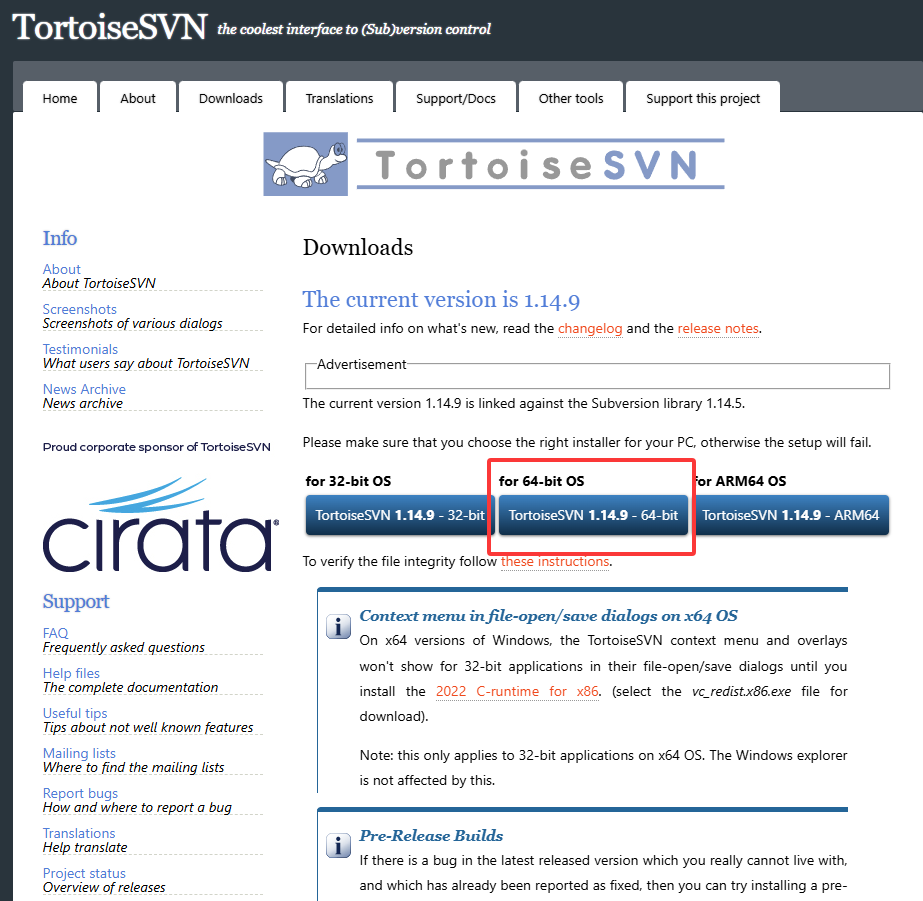
The downloaded file looks like: TortoiseSVN-1.14.5.29465-x64-svn-XXX.msi
Scroll to the bottom of the page to download the Chinese language pack:
Download Simplified Chinese (Chinese, simplified):
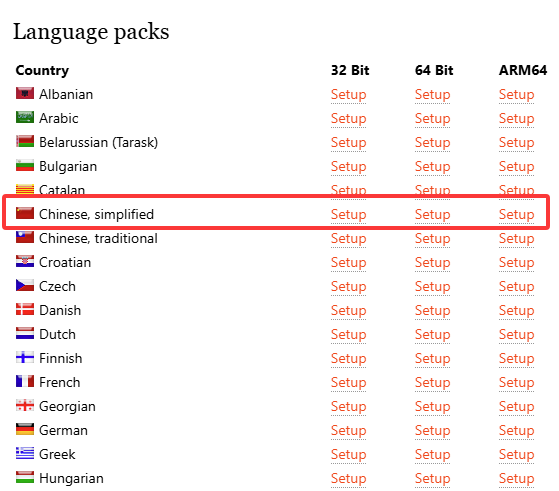
The downloaded file looks like: LanguagePack_1.14.5.29465-x64-zh_cn-XXX.msi
Installation
For the initial steps, just keep clicking Next.
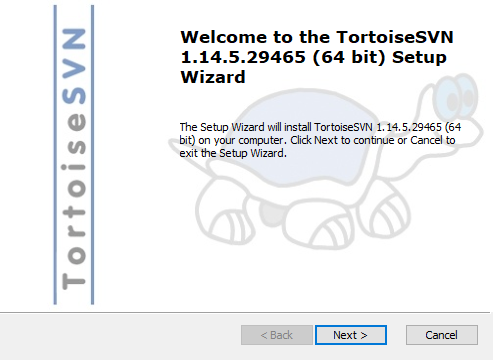
Here you can choose the installation directory and options. Note that it is best to select the command line client tools option, as some command-line tools may use it.
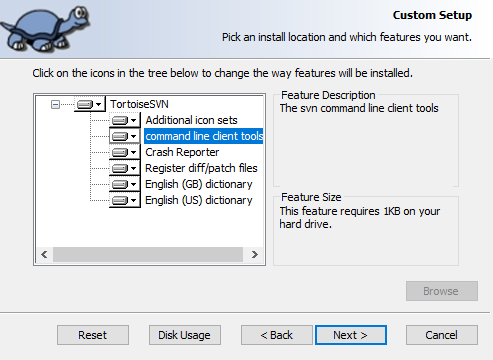
Finally, select Install.
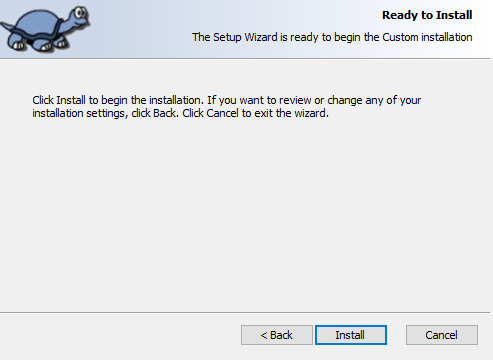
After success, it is best to restart the machine so that the SVN-related configuration can take effect immediately.
Language Pack (Optional)
Similar to the main program, just install it by following the prompts.
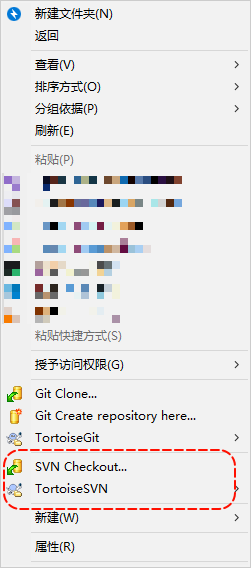
After all installations are complete, SVN-related options will appear in the right-click menu.
SVN Command Line
Many tools based on the svn command line will try to call programs related to svn, so it is best to install the SVN command line correctly on the machine.
During installation, select command line client tools to install it.