The following mainly uses the English version as an example; for the Chinese version, select the corresponding option in the same location.
Warning: many images. Use the table of contents on the left to jump to the desired section.
Function Overview
Since modifying a file often takes some time, if someone uploads the same file during that period and it cannot be merged, a conflict will occur when you commit.
To minimize this problem, we can lock the file (Lock) before modifying it, so others cannot upload through normal operations.
At the same time, if they also try to lock it before modifying, they will be prompted that someone else has already locked the file, thereby avoiding wasted work.
Tool Usage
Locking a File
Right-click the file to lock and choose TortoiseSVN->GetLock...; a confirmation dialog appears.
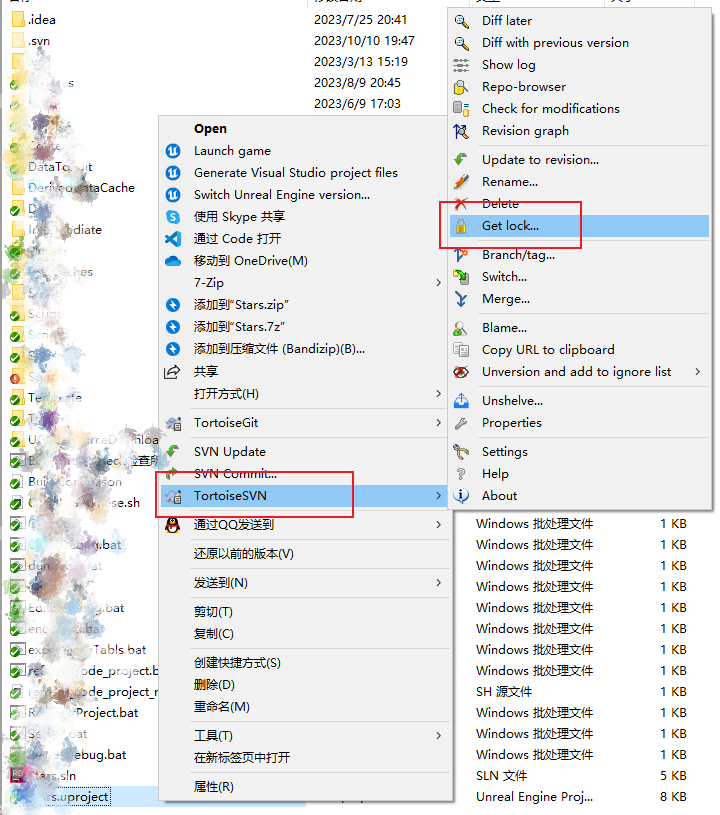 | 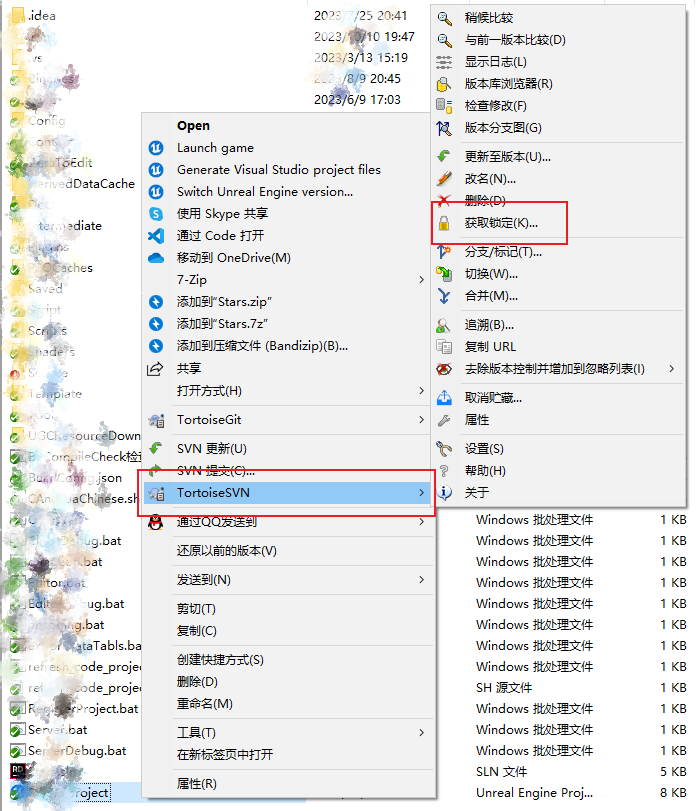 |
|---|---|
| English version | Chinese version |
Enter the lock reason in the dialog and click OK.
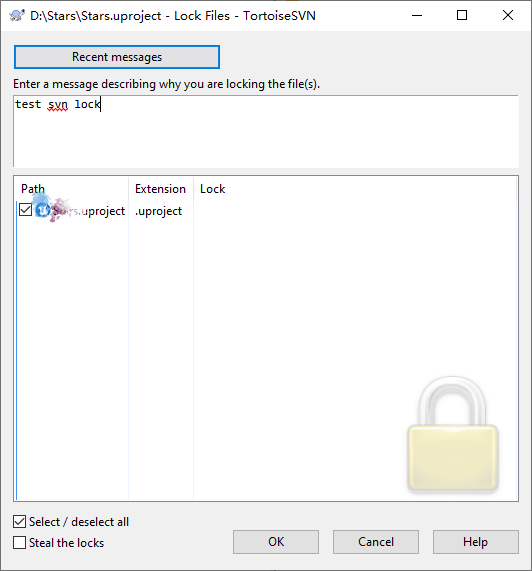 | 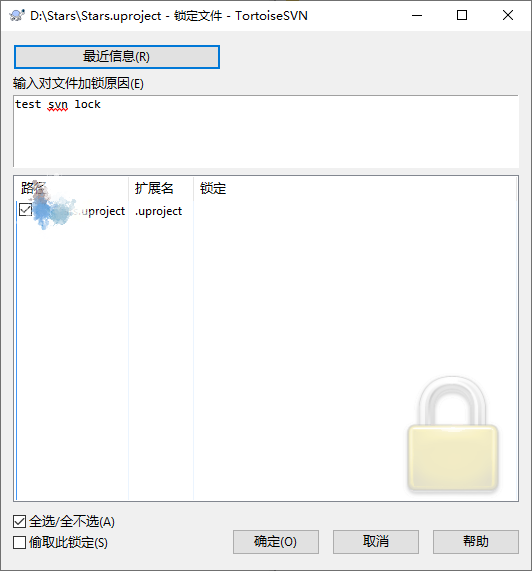 |
|---|---|
| English version | Chinese version |
Checking Locks
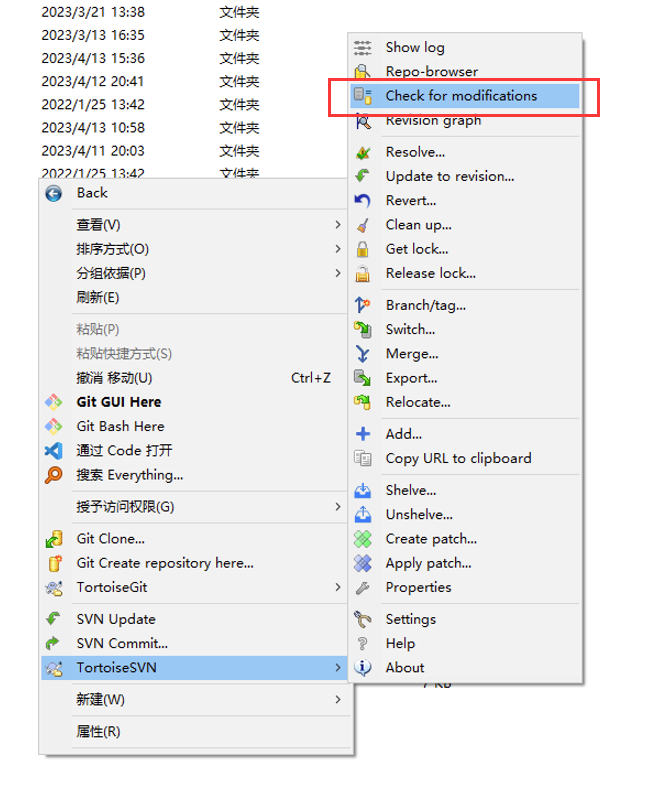
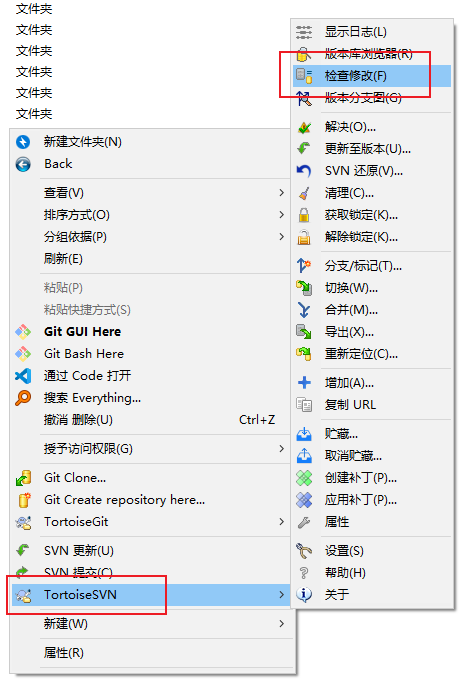
To check whether a file is locked by someone else, right-click and choose TortoiseSVN->Check for modifications.
 |  |
|---|---|
| English version | Chinese version |
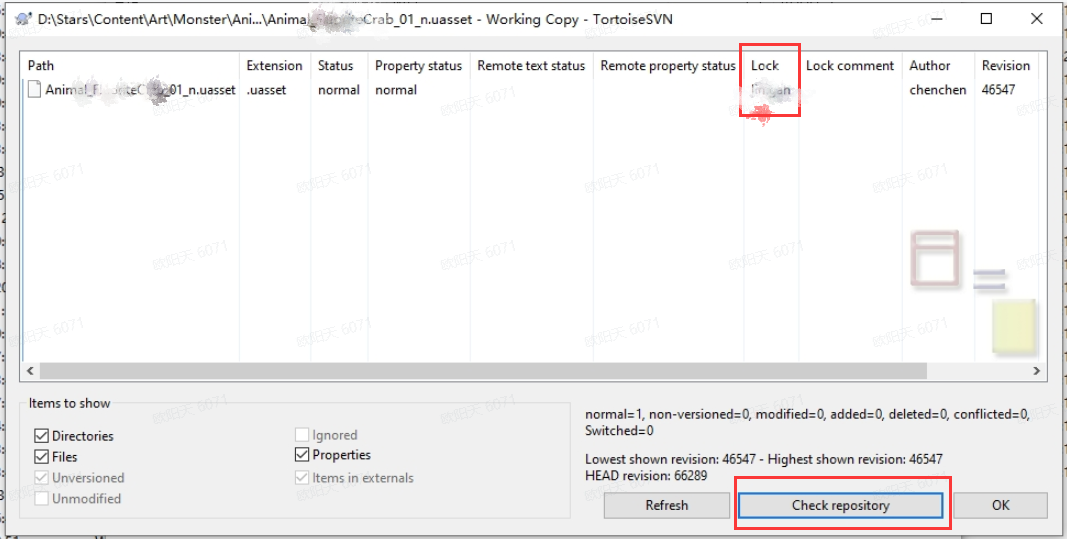
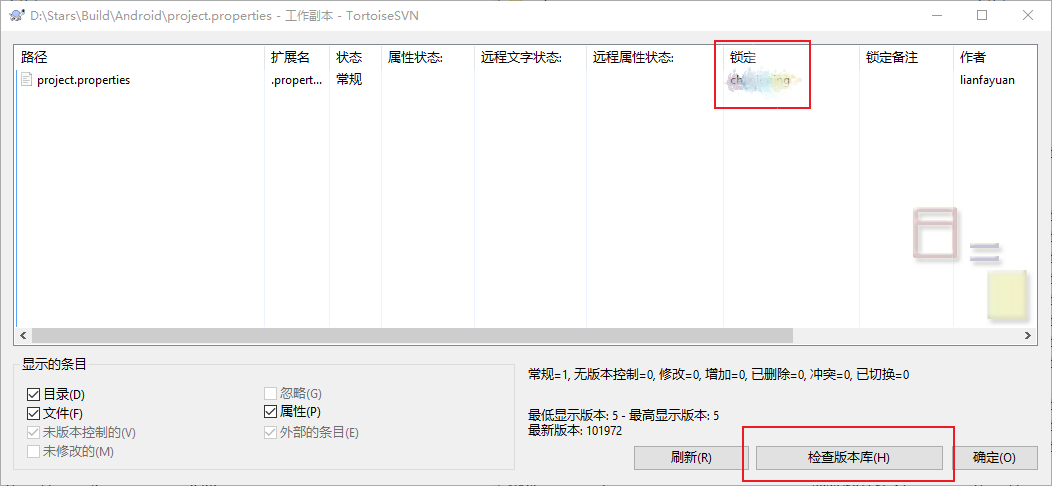
Click Check repository to scan for changes, and check the lock owner in the Lock column.
 |  |
|---|---|
| English version | Chinese version |
Releasing a File
Manual Release
Similarly, right-click the file to release and choose TortoiseSVN->ReleaseLock...; in the confirmation dialog, click OK.
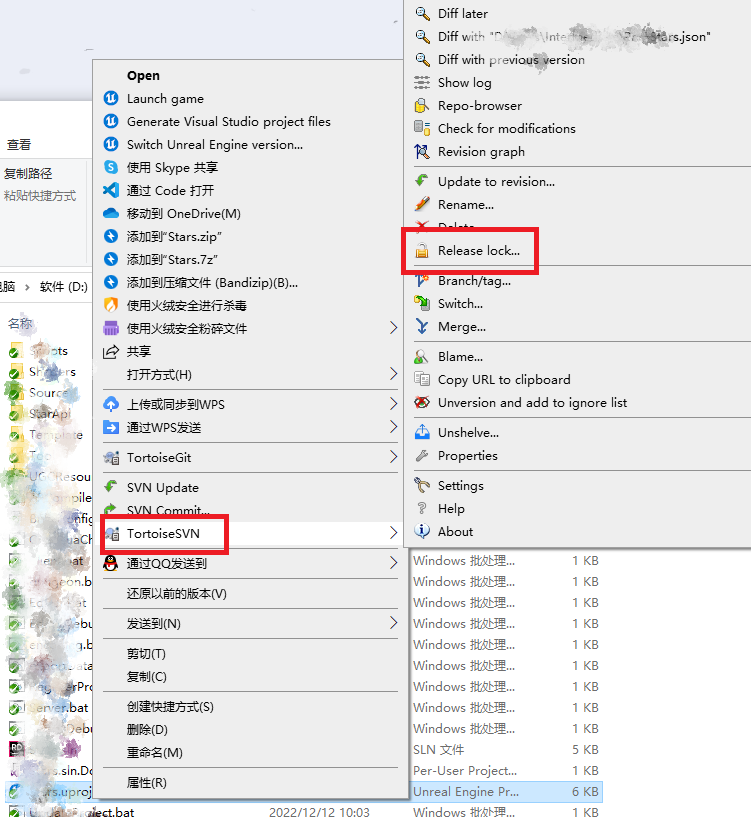 | 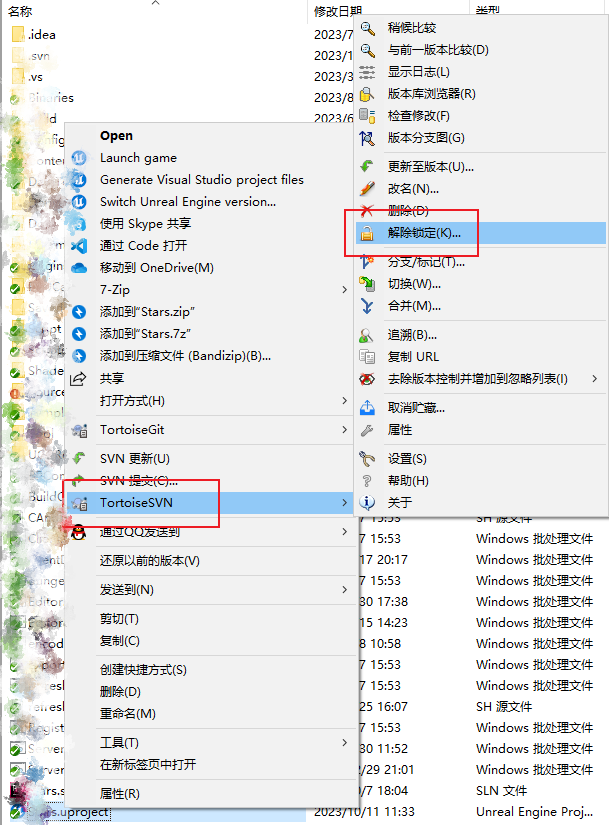 |
|---|---|
| English version | Chinese version |
Automatic Release
By default, SVN unlocks the corresponding file when committing. If you do not want to unlock after committing, select Keep Locks.
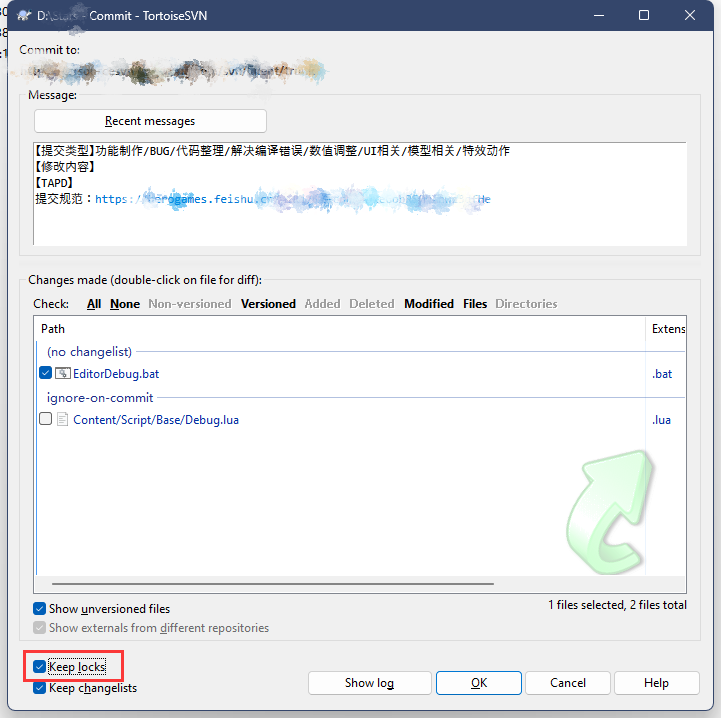 | 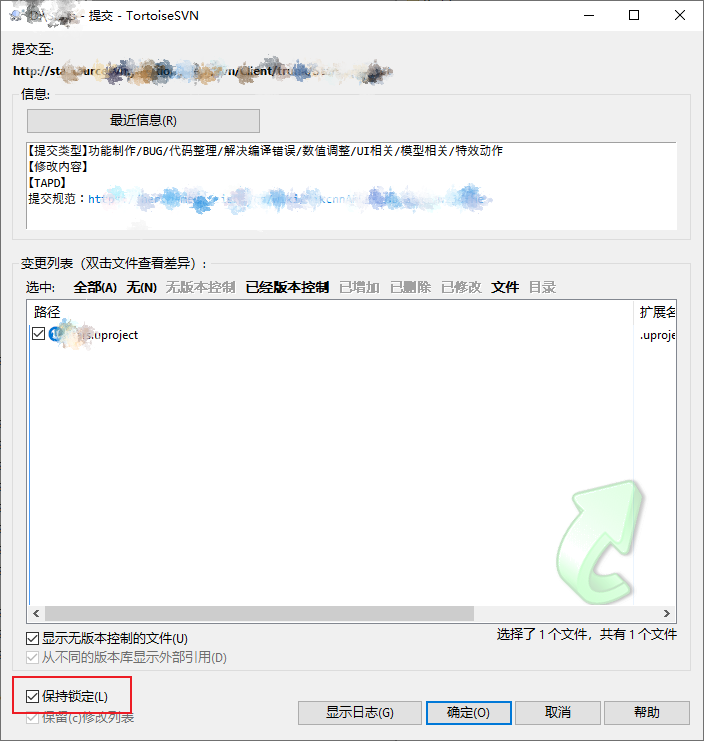 |
|---|---|
| English version | Chinese version |
Unexpected Situations
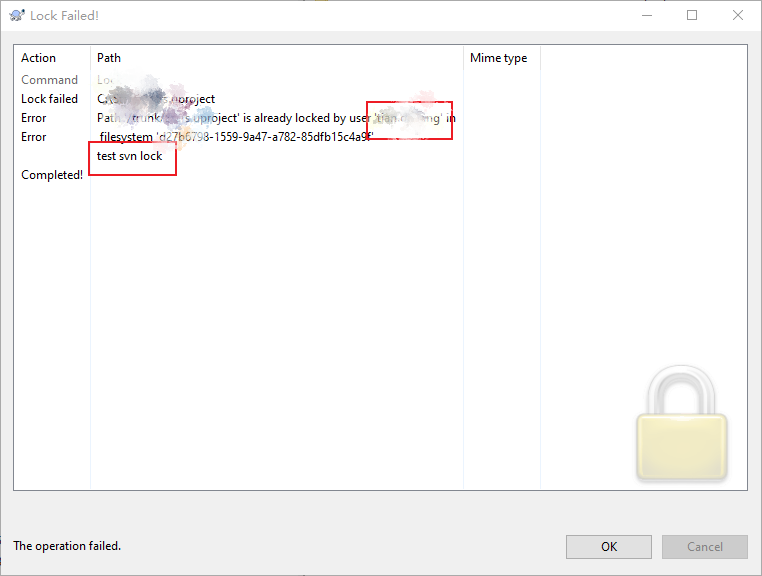
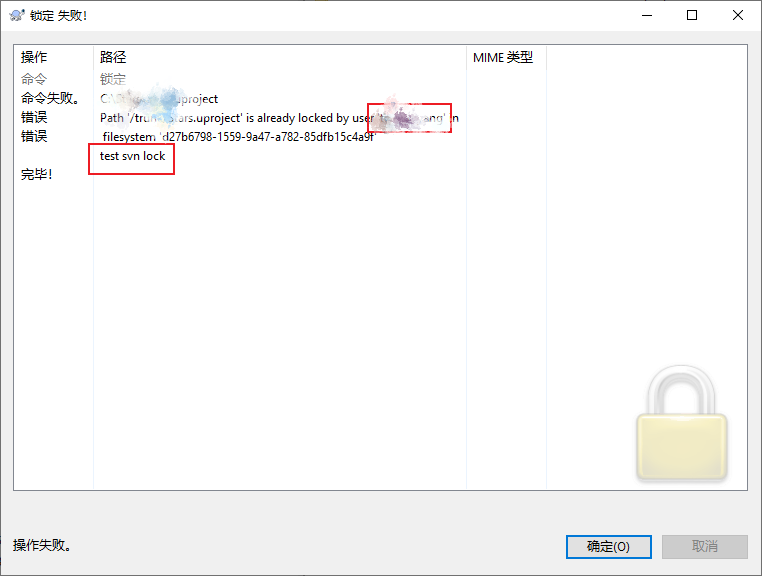
If the following prompt appears when locking, the file has already been locked by a user. The lock information is displayed at the position shown below (not displayed if the locker did not fill it in).
 |  |
|---|---|
| English version | Chinese version |
In this case, communicate with that user about the reason for the lock and negotiate a resolution.
Force Locking
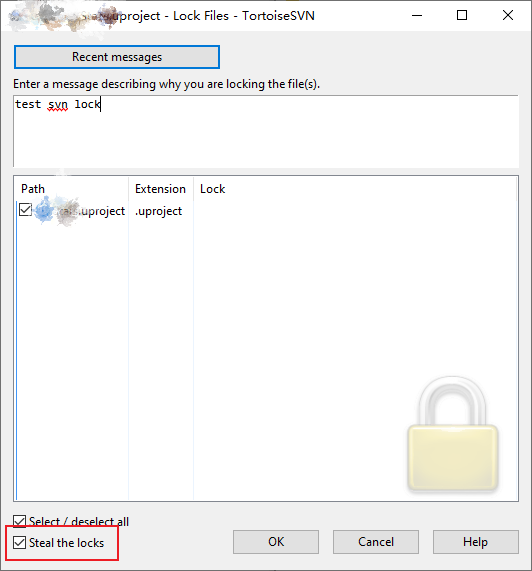
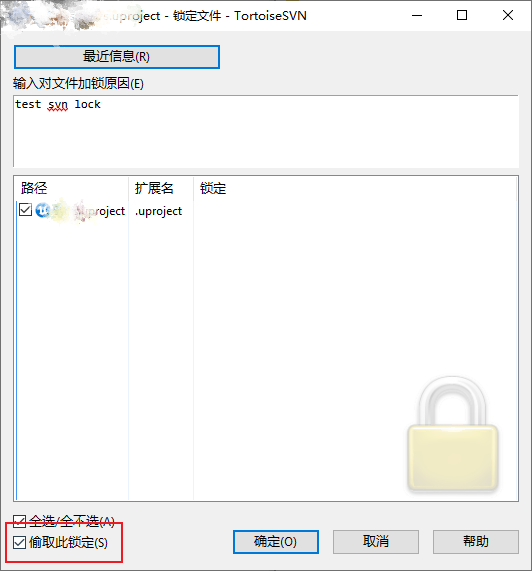
Since lock markers are stored in the local folder, a lock may remain unreleased after switching machines or for other reasons; in that case, you need to force-release the lock.
When Steal the locks is checked during locking, the existing lock is forcibly invalidated and transferred to the user performing this operation.
If a file is locked by another user, avoid using this operation to disrupt the development workflow.
 |  |
|---|---|
| English version | Chinese version |
Integration with the Engine
UnrealEngine provides built-in version control tools that make some SVN operations convenient. See Engine Built-in Version Control Tool for configuration.
Notes
Locking interferes with colleagues’ operations, so confirm the necessity before locking. If someone asks about related issues, respond actively.
To avoid mistakes, check the Release Lock list periodically for files that were locked by mistake.