Feature Overview
To facilitate multi-user collaboration, UnrealEngine provides a Version Control tool that can work with tools such as SVN and Git to version-control assets such as Blueprints.
Using the Tool
Configure Connection
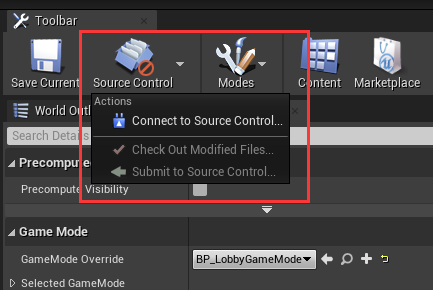
There is a Source Control option in the engine toolbar; selecting Connect to Source Control opens a confirmation dialog.
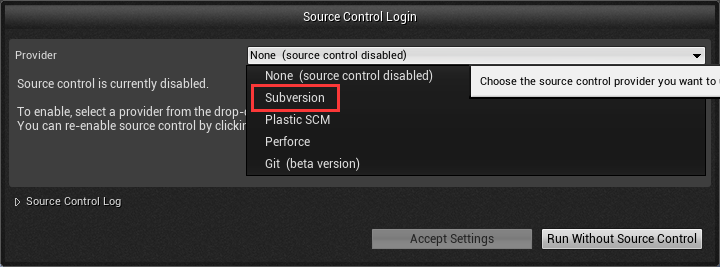
Select Subversion, i.e. SVN, and the information input fields are displayed.
Enter the required information and click Accept Settings.
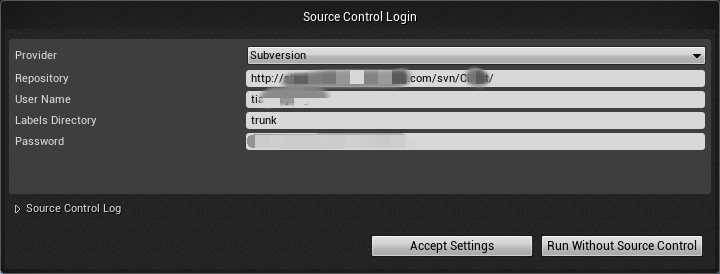
The meanings of several fields are as follows:
| Field | Description | Example |
|---|---|---|
| Provider | Version Control system used | Subversion |
| Repository | Repository URL | http://..com/svn/***/ |
| User Name | Username | *** |
| Labels Directory | Repository subpath, such as trunk or a branch | trunk |
| Password | User password | abcdefg123465 |
Saving Assets
After connecting to Version Control, a confirmation dialog appears when performing operations such as saving an asset, asking whether to CheckOut.
This operation corresponds to the SVN SVN lock operation; lock before modifying, which avoids conflicts when multiple people modify the same Blueprint.
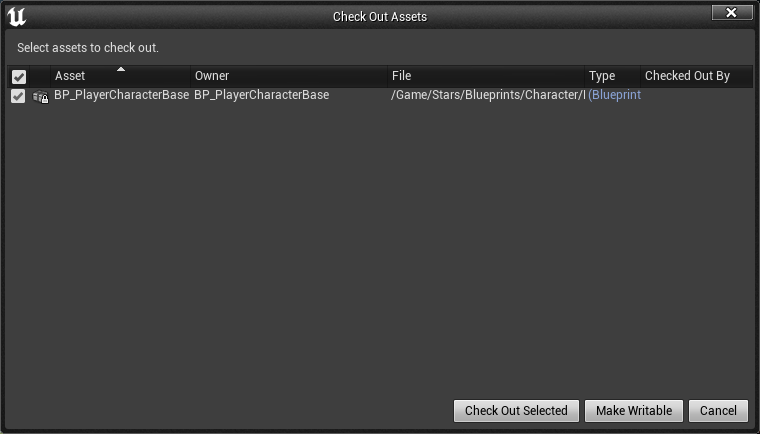
If the asset has already been locked by someone else, clicking CheckOut shows the following prompt.
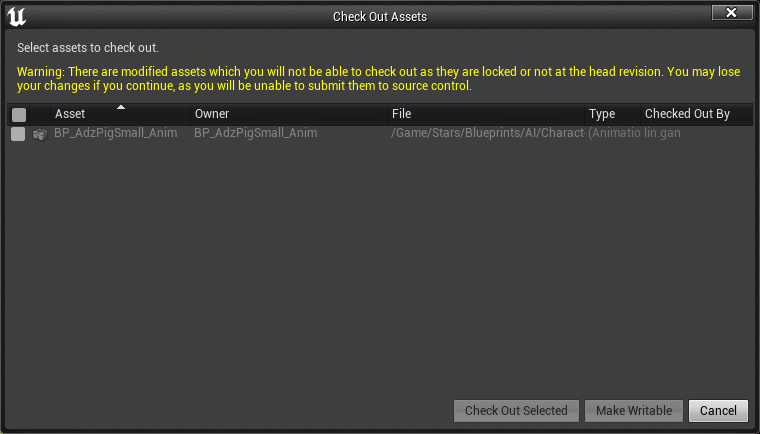
If everyone follows this operation, the possibility of Blueprint conflicts can be greatly reduced.
If you do not need to lock the Blueprint, you can click Make Writable to save without locking.
Asset Operations
After connecting to Version Control, right-clicking an asset expands the Version Control operations.
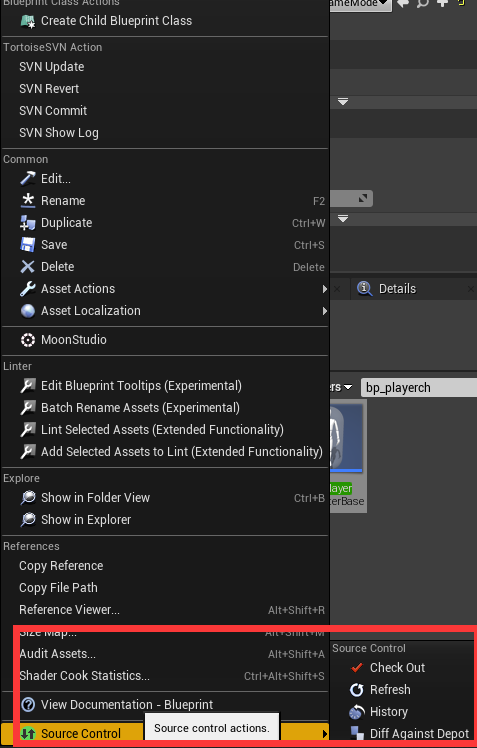
The meanings of several fields are as follows:
| Field | Description |
|---|---|
| CheckOut | CheckOut the asset; corresponds to locking described above |
| Refresh | Refresh asset version status, resolving issues where updates are sometimes not timely |
| History | Open the asset’s version history |
| Diff Against Depot | Compare the asset with the latest version in the repository |
The most commonly used is History, which opens the asset version history.
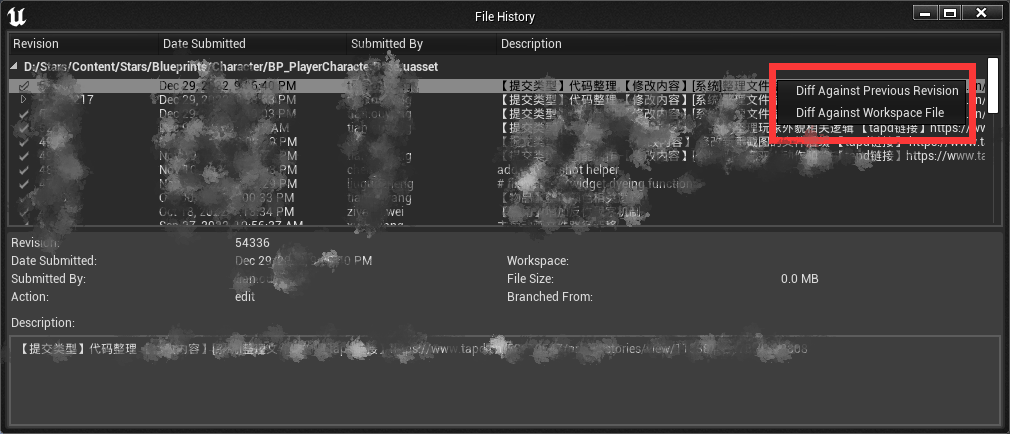
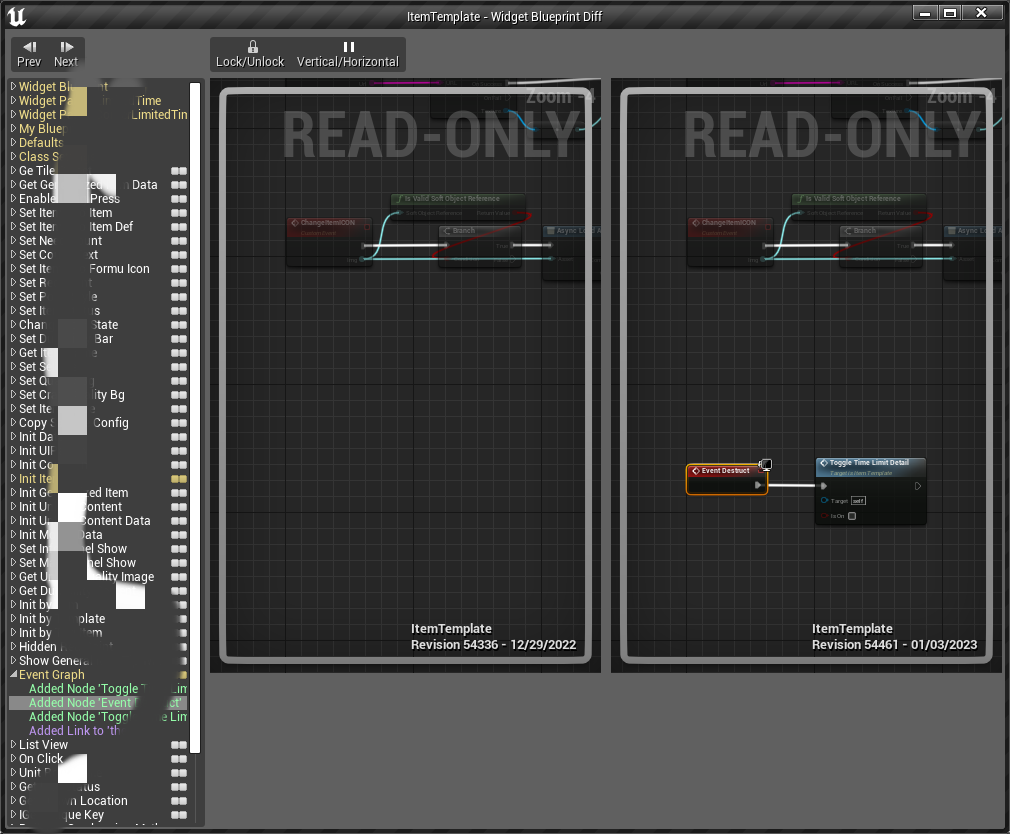
In the version history, you can right-click to choose to compare with the previous version or compare with a local file.
Notes
In asset management, the CheckOut operation corresponds to the SVN Lock operation; it locks the asset to prevent others from committing, and therefore interferes with other colleagues’ operations.
Before performing the SVN lock operation, confirm whether the operation is necessary; if someone asks about related issues, respond actively.
After connecting to SVN, some operations automatically mark changes in SVN, such as moving paths, renaming, and deleting, which increases operation time; just wait patiently.